Last Updated: December 15 2025
Overview
Create a tax invoice to claim all items, cost centres, and sections on a job.
You can also invoice a job per item to keep the cost centre/s unlocked and add additional billable items to the job.
To set up how your invoice forms appear when you email them to customers, see How to Set Up Invoice Forms.
US only: If you use Simpro Premium in the United States, the term 'invoice' is used instead of 'tax invoice'.
 Required setup
In order to view content or perform actions referred to in this article you need to have the appropriate permissions enabled in your security group. Go to System > Setup > Security Groups and access your security group to update your permissions. The relevant security group tab and specific permissions for this article can be found here:
Before performing the steps detailed below, ensure that this part of your build is set up correctly. The relevant steps to set up the features and workflows detailed in this article can be found here:
Invoice a job
You can invoice individual or multiple jobs in the following ways:
|
Update and invoice the job |
Update a job that is ready to invoice. Click Save and Finish. And, Invoice Job. |
|
Invoice an individual job |
Go to Jobs |
| Invoice multiple complete jobs at once |
Invoice multiple complete jobs at once to create multiple invoices for different customers:
Each invoice individually appears in Invoices |
|
Create a consolidated invoice |
Create one consolidated invoice for jobs that share the same customer and exchange rate:
The selected jobs are invoiced under the same invoice in Invoices Payments made on consolidated invoices cannot be calculated as an amount paid per job, so the Amount Paid table view column is not calculated for jobs on a consolidated invoice. Learn more in How to Organise Simpro Premium Data. When you email a consolidated invoice to the customer, select the Consolidated Invoice form in the Forms tab. This form is designed to show multiple jobs on one invoice and can be customised in your invoice forms setup. Learn more in Set up consolidated invoice forms. |
 > Pending / Progress / Complete, then click Options > Create Invoice on the job you wish to invoice.
You can then proceed to Create a tax invoice as normal.
Create a tax invoice
Create a tax invoice to claim all items, cost centres, and sections on a job.
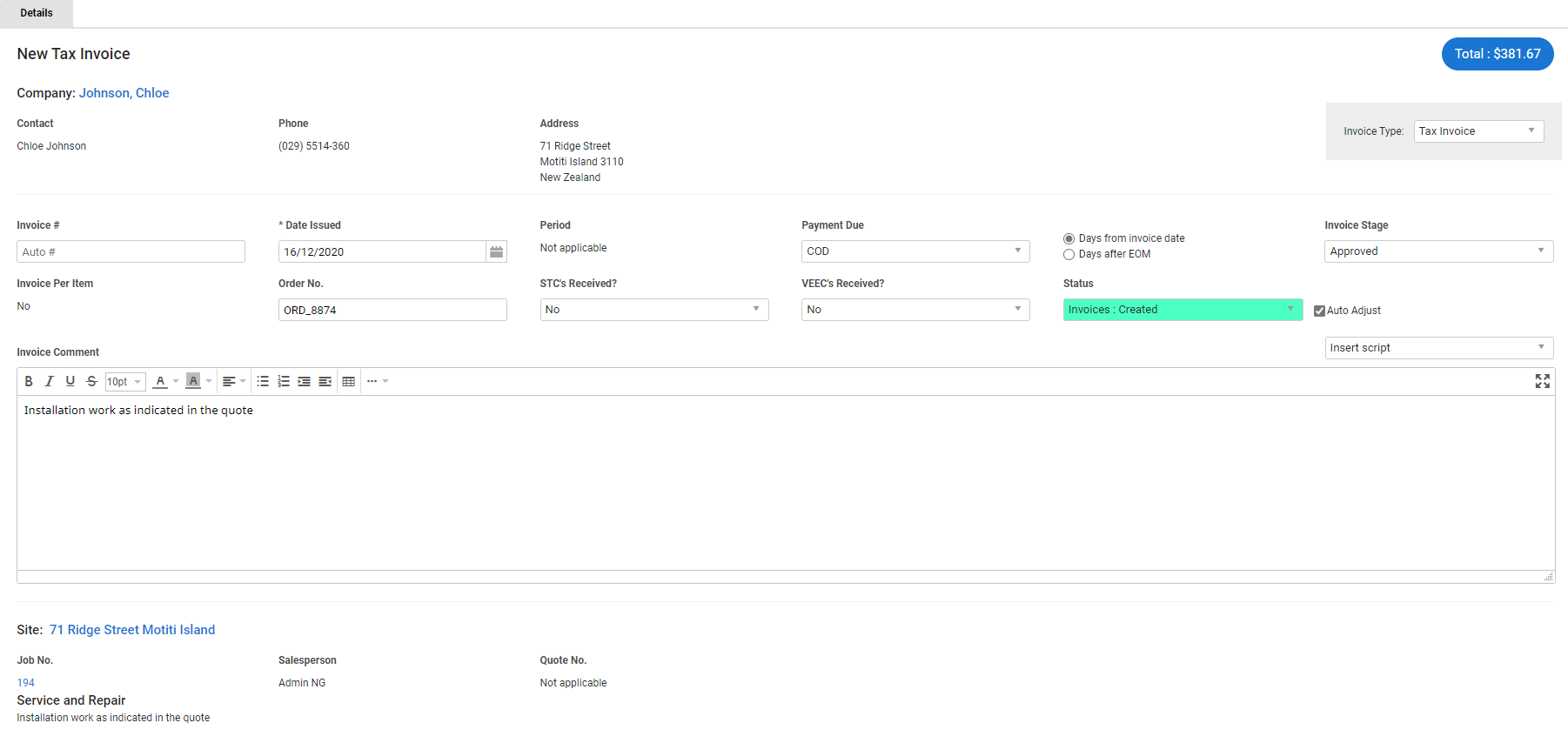
To create a tax invoice:
- Ensure all job details are updated, then Invoice a job as normal.
- Select Tax Invoice / Invoice (US only) as the Invoice Type.
- Select the Date Issued. This defaults to the current date.
- The Period indicates the first schedule date to the most recent schedule date on the job.
- Under Payment Due, select the number of Days from invoice date or Days after EOM (end of month) that the payment is due.
- This automatically populates according to your financial default / customer settings. Learn more in How to Set Up Financial Defaults and / or Adjust customer settings.
- Select the Invoice Stage.
- This indicates your business's internal approval, not the customer's approval, and depends on your security group permissions.
- UK, IE only: Select the applicable CIS / RCT Deduction Rate. Learn more in How to Manage CIS / RCT with Simpro Premium - UK, IE Only.
- Enter an Invoice Comment or select a script if required.
- Enter a Footnote or select a script if required.
- This field is automatically populated with the footnote set in your invoice forms setup. Learn more in How to Set Up Invoice Forms.
- Click Save and Finish.
The invoice appears under Invoices  > Unpaid Invoices. To exit the invoice, click Finish. Alternatively, click Payments to view all payments and credit notes applied to the invoice, or to create a new payment or credit note.
You can also click Log to view a history of all activity on the invoice, including when it was created, approved, and sent to the customer, or click Notes to view and create notes on the invoice.
If you create a Note with an assigned employee, they receive an Alert on the Follow Up Date.
If you are invoicing a job containing a membership cost centre, the membership is active in the customer's card file after the invoice is created. Learn more in How to Sell Memberships.
Invoice per item to keep cost centre open
Partially invoice a job using invoice per item to keep the cost centre/s unlocked and add additional billable items to the job.
This is useful for 'do and charge' jobs that you need to continuously bill to your customers. For example, you may wish to collect fees and other expenses prior to the job commencing, and then more billable items to the job once your technician has installed them, or alternatively, you may be completing a 'do and charge' project job and you wish to bill for the items you have completed in the project.
If you choose to invoice per item for the first job invoice, each subsequent invoice is invoiced per item and has its own sequential claim number that can be displayed on the invoice form. Learn more in How to Set Up Invoice Forms.
When the job is complete and ready to be fully invoiced, you can Invoice all items and lock the job.
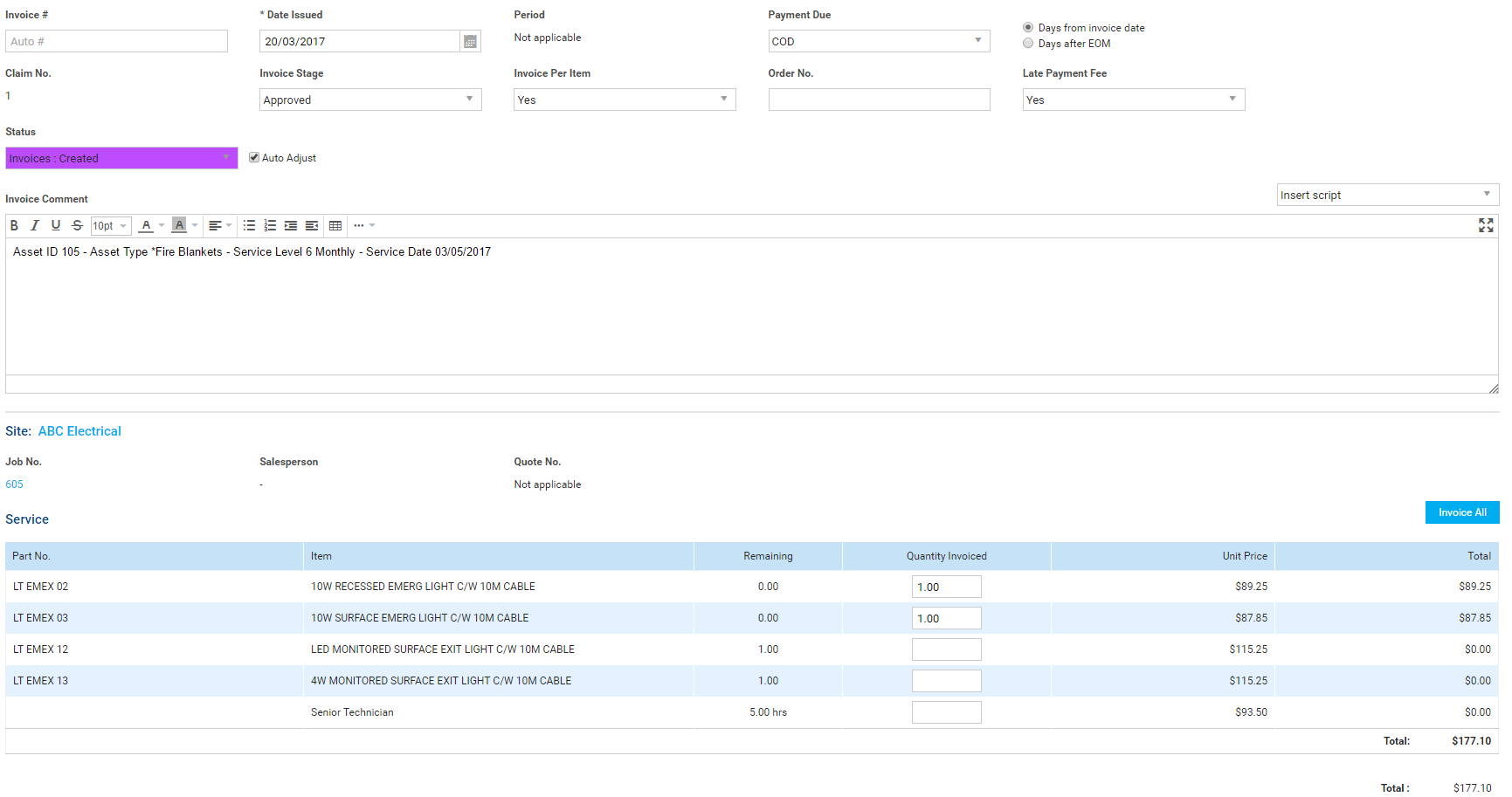
To invoice a job per item:
- Ensure all job details are updated, then Invoice a job as normal.
- Select Tax Invoice / Invoice (US only) as the Invoice Type and Create a tax invoice as normal.
- Under Invoice Per Item, select Yes. The sequential Claim No. is generated automatically.
- Enter the Quantity Invoiced for each item as applicable.
- Click Finish.
Note that for the job to remain unlocked at least one item must not be invoiced.
When you next access the job and go to Parts & Labour > Billable > Parts in the cost centres that have been invoiced, times, prices, and markup are locked for items that have been invoiced to prevent price adjustments. You can still adjust item quantities, however they cannot be less than the quantity that has already been invoiced.
If you add items that have already been added and invoiced on the job, the additional items appear in a new line in the Parts table.
Invoicing per item is not available for jobs with an adjusted price or with retention / retainage enabled. If you are completing a job Simpro Mobile that has previously been invoiced per item, you can invoice and apply payment to the remaining amount with the pricing and billable items restricted.
If you are invoicing a job containing a membership cost centre to sell a membership to a customer, you need to invoice the full amount of the cost centre to make it active in the customer card file. Learn more in How to Sell Memberships.
Invoice all items and lock the job
You need to ensure jobs are placed in the appropriate Jobs stage when invoicing per item:
| Pending / Progress | The job is unlocked and you can continue adding items and invoicing per item. |
| Complete |
The job is unlocked and you can continue adding items and invoicing per item. This stage is applicable for jobs that have been manually marked as Complete in Simpro Premium, but have not had all items invoiced. If you invoice all items in Simpro Premium and / or Simpro Mobile at this stage, the job is locked and moves to Invoiced Jobs. |
| Invoiced |
The job is locked after being marked as Complete and having all items invoiced in Simpro Premium and / or Simpro Mobile. If you unlock the job and add billable items, the job moves back to Complete Jobs where you can invoice the remaining items. You can also go to Jobs |
| Archived |
The job is locked with all items invoiced and all payments applied in Simpro Premium and / or Simpro Mobile. For best practice, please ensure you move a job back to an active stage such as Pending / Progress / Complete before adding more items to an invoice. |
To invoice all items and lock the job:
- Access the job, then go to Details > Settings.
- Under Stage, select Complete.
- Click Finish > Invoice Job.
- Click Invoice All for each cost centre.
- Click Finish.
The job is then locked and you are not able to create further invoices. This also occurs if you invoice all items on the job, then set the job stage to Complete at a different time, for example, when you click Options > Job Stage > Complete on a job in the Jobs table in Simpro Premium, or when you submit the job in Simpro Mobile.
Approve an invoice
If you have selected Restrict Unapproved Invoices in System Setup, invoices must be in the Approved stage before they can be emailed to the customer, paid off, voided, or credited. If you have not selected Restrict Unapproved Invoices, invoices can be emailed to the customer before they are approved, but you must approve the invoice before applying payments.
To automatically approve invoices upon creation, go to System > Setup > Defaults > System > Invoices > Invoice Stage and select Approved. Alternatively, select Pending to require them to be manually approved by an employee with the correct security group permissions.
To approve an invoice still in the Pending stage:
- Access the applicable invoice.
- Click Unlock.
- Under Invoice Stage, select Approved.
- Click Finish.
Email an invoice
After you have completed and approved an invoice, you can then email an invoice form directly to the customer from Simpro Premium.
To learn how to adjust how your invoice form PDFs display, including the form title, form totals, materials and labour information, footnote, header fields, and more, see How to Set Up Invoice Forms.
Learn more about using form builder templates in How to Use Form Builder Templates.
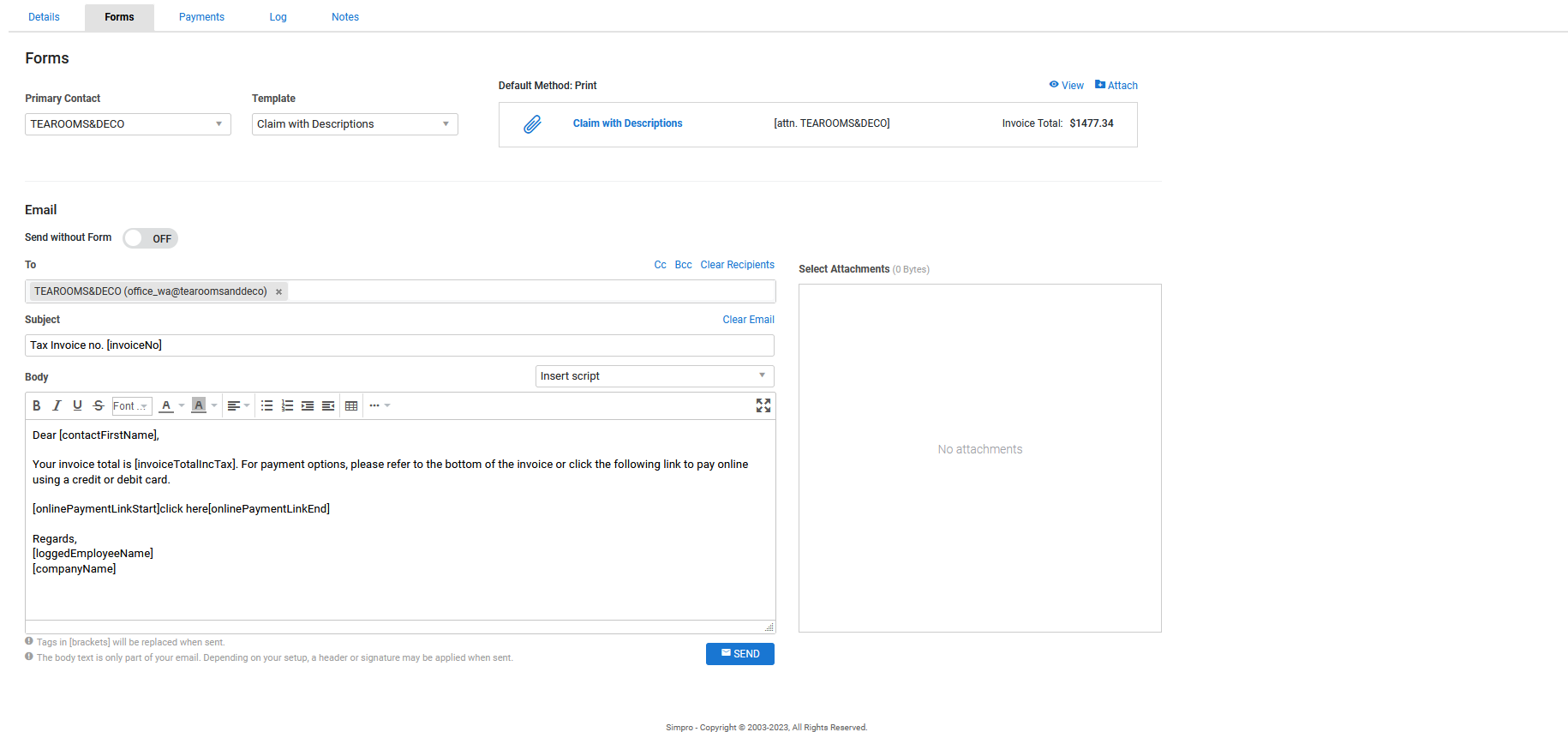
To email an invoice form:
- Click the Forms tab in the invoice.
- Select the form you wish to send from the Templates list.
- See Assign form templates to appear when emailing a customer invoice to learn how to update the forms that appear here.
- Click View to preview and / or print the form.
- Select a Primary Contact to address the form to and click to add additional Contacts if required.
- This is automatically populated by the primary contact for invoicing defined in the customer card file.
- Alternatively, you can manually enter email addresses and separate them with a comma. To remove recipients, click Clear Recipients.
- Any secondary contacts selected when setting up the lead / quote / job are pre-populated in the Cc field. You can also add more recipients in the Bcc field if you want to hide their email addresses from other recipients.
- Adjust the default Subject and Body template if required.
- See Set up the email template for customer invoices to learn how to update this template.
- Alternatively, click Clear Email to enter a new Subject and Body, or select a script from the Insert Script drop-down. Learn more in How to Use Scripts.
- Click Send > OK > OK.
A log entry is then created in the Log tab, where you can view the email text and any form attachments.
If you need to send multiple invoices, consolidated as a customer statement, use the Aged Receivables Report. Select the customers you want to email a statement to and click Email in the footer options. Alternatively, to send multiple individual invoices use the Sales Invoices Report. Generate the report as required, select the check boxes for the invoices to email and under Print Options, select the invoice form and click Email at the bottom of the page.
It recommended that you do not generate DOCX when you click View as it allows you to alter the invoice outside of Simpro Premium. This can cause errors within your accounting system and impact reporting.
View the invoice log
Click the Log tab to view a history of actions in that invoice, along with the logged-in employee who performed them and the date and time.
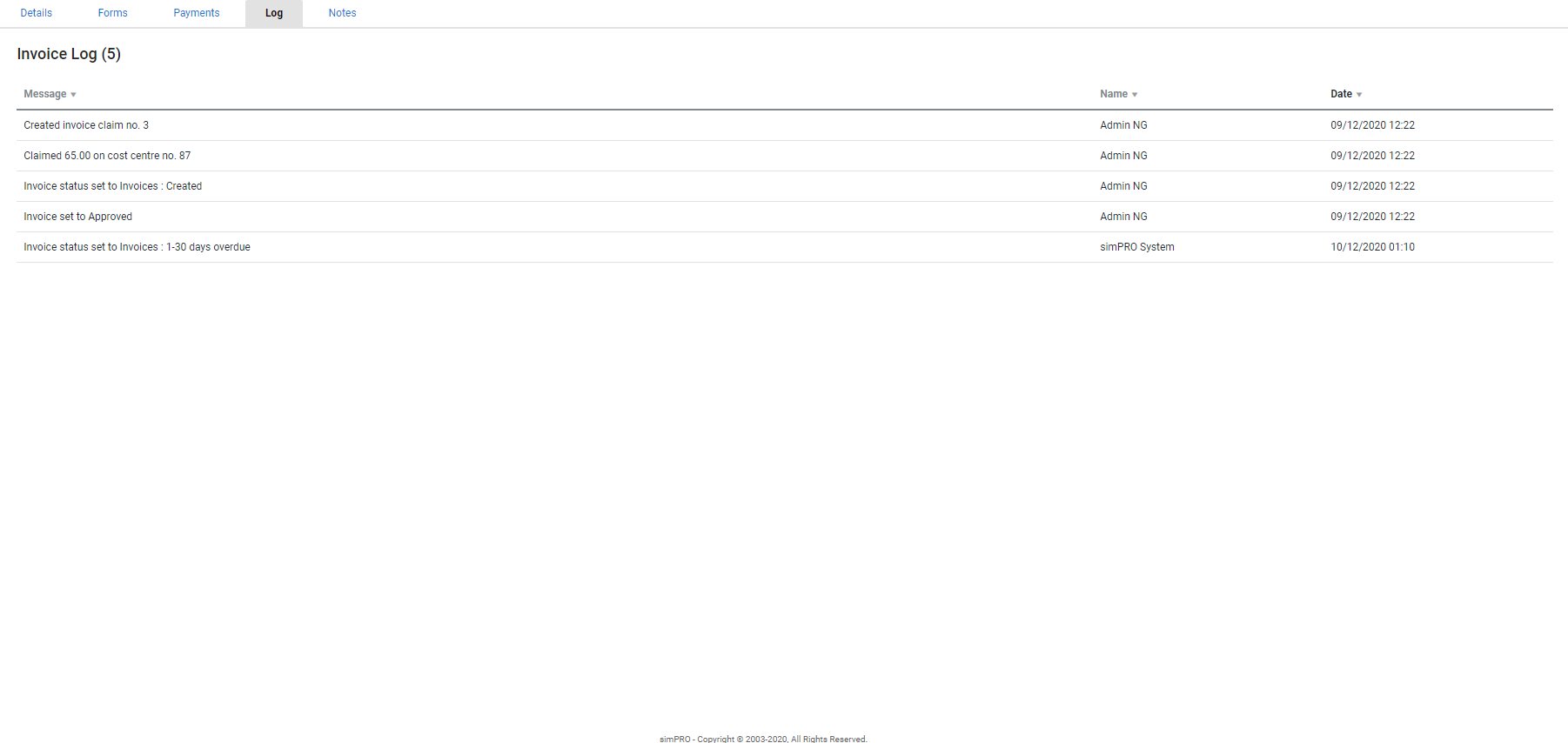
Actions logged in the Message column of the log can include:
- Creation and modifications
- Status updates
- Printing and emailing forms
- Payment.
Learn more in the Learning Toolbox
For additional training, complete an interactive material in the Simpro's Learning Toolbox. Learn more in About Simpro's Learning Toolbox.