Last Updated: December 08 2025
How to Use Simpro Data Feed
Overview
Simpro Data Feed extracts data from emails forwarded from your external mail client, and processes the email contents and attached documents, including PDFs, CSVs, Excel spreadsheets, and text files, through feeds. Learn more in About Simpro Data Feed.
After setting up Simpro Data Feed, you can access it from your Simpro Premium build to view and manage the emails, documents, and feeds being processed. You can also upload emails and documents to manually execute a feed, intervene in a feed to add or update the required information, and view data created by Simpro Data Feed in Simpro Premium.
 Required setup
In order to view content or perform actions referred to in this article you need to have the appropriate permissions enabled in your security group. Go to System > Setup > Security Groups and access your security group to update your permissions. The relevant security group tab and specific permissions for this article can be found here:
Set up Simpro Data Feed
To begin using Simpro Data Feed, you need to identify workflows you frequently create in Simpro Premium using information received in an email and / or email attachment, and contact Simpro to provide the information they need to set up feeds for these workflows. Learn more in Set Up Simpro Data Feed.
Access and navigate Simpro Data Feed
After Simpro Support has finished setting up your system and you have enabled the correct security group permissions in Simpro Premium go to Utilities  > Data Feed to access Simpro Data Feed. Learn more in Set up Simpro Data Feed.
You are then taken to the Analytics tab in Simpro Data Feed, where you can access the following tabs:
| Home |
View the information about Events Requiring Input, Latest Messages, and Latest Documents. Learn more in View the Home page. |
| Messages |
View emails received by Simpro Data Feed and manually upload emails to execute feeds for. Learn more in View emails. |
| Documents |
View documents received by Simpro Data Feed and manually upload documents to execute feeds for. Learn more in View documents. |
| Mailboxes |
View and create mailboxes so Simpro Data Feed can receive and extract data from emails forwarded from your external mail client. Learn more in Create mailboxes. |
| Events Log |
View a record of all events occurring in Simpro Data Feed. You can also view events' individual logs, and directly access any workflows generated from that event in Simpro Premium. Learn more in View the events log. |
| Unique Parts |
Create part numbers that are used by a supplier to represent multiple unique items. Learn more in Create or delete unique part number. |
| Analytics |
View the number of emails and documents being received and processed in Simpro Data Feed, as well as the most active feeds. Learn more in View analytics. |
| Audit Logs | View the Timestamp, Name, ID, Feed Name, Type, and details of the changes made to the corresponding feeds. |
View the Home page
Under Events Requiring Input are feeds waiting for user input, for example, if a mandatory field of data could not be extracted from an email or document or sourced from elsewhere. Learn how to input this mandatory data in View documents.
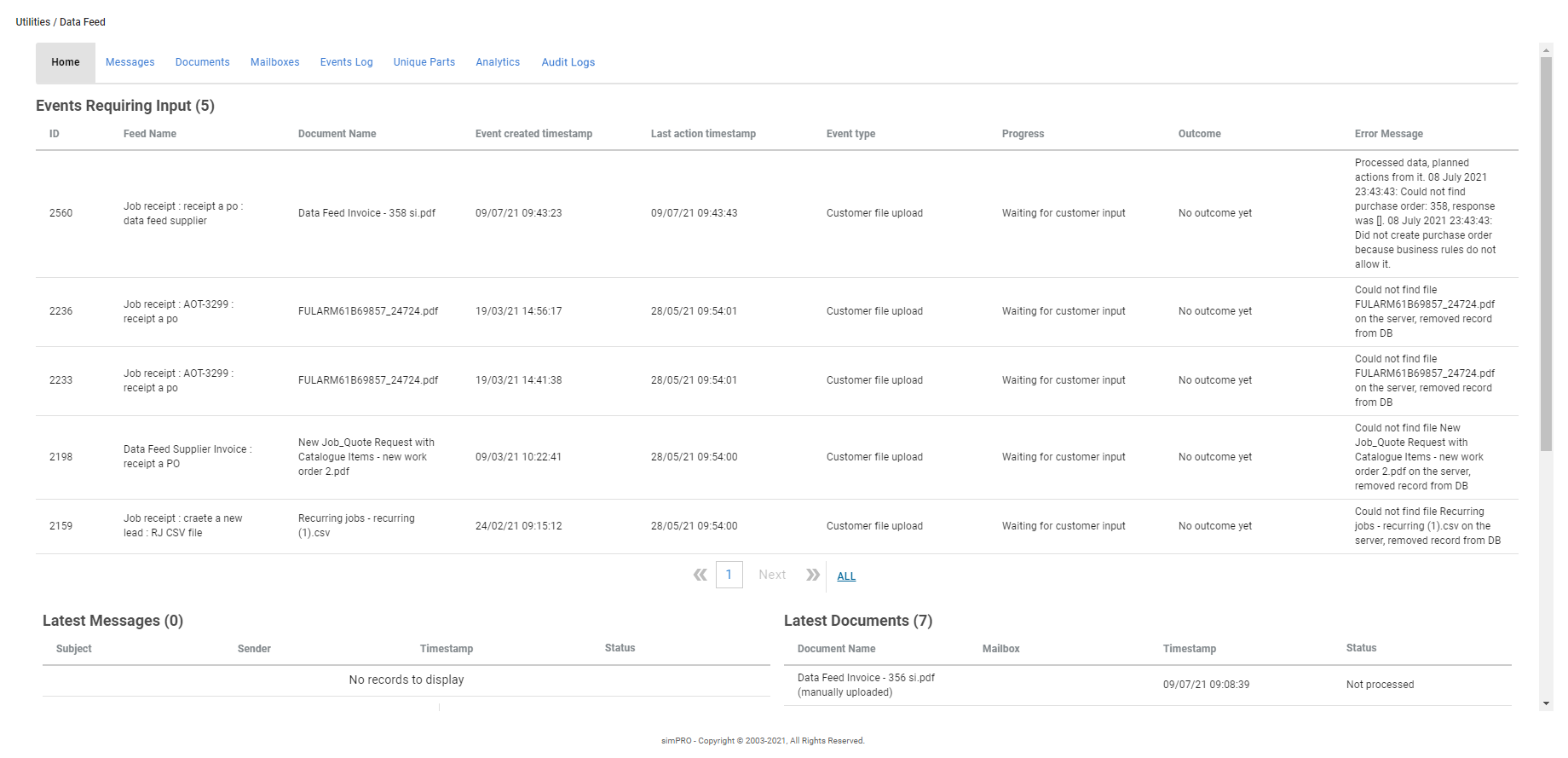
You can also view the ten Latest Messages / Latest Documents received by Simpro Data Feed, along with their Status:
| Not processed | An email or document has been received in Simpro Data Feed, but has not matched to a feed and has not been processed. |
| Processing |
An email or document has been received in Simpro Data Feed, and is going through the following stages:
These stages can all occur within minutes. |
| Processed | An email or document has been received in Simpro Data Feed and has finished processing through a feed. |
Intervene in a feed
You can access Simpro Data Feed regularly to check the Events Requiring Input table and ensure your feeds have all the information they need to interact with Simpro Premium and generate workflows.
To do this:
- Access the Home tab.
- Under Events Requiring Input, click the feed you want to intervene in.
- If there are no feeds requiring data, the table does not appear.
- Review the extracted data for each field.
- Mandatory fields display with an asterisk.
- Fields with successfully extracted data displays a tick icon.
- Locate any mandatory fields that have a hazard icon and enter the required data.
- Click Close Event when complete.
You can then click the Events tab in the executed feed to view the Result, and click view to access the generated workflow in Simpro Premium if applicable.
Process a supplier invoice with multiple items with the same part number
- Go to Utilities > Data Feed. When a supplier invoice is processed that has multiple items with the same part number the event is displayed in the Events Requiring Input table.
- Click on the event.
- In the Date Extracted tab, go to the Invoice Line Items table.
- To save an item as Unique select the check box.
- Items are saved to the Unique Parts tab. Once saved all future orders that include this item can be processed without requiring input.
- To differentiate items update the part numbers.
- For example if two items have the part number 12345, you could update the first item number to be 12345a and the second to 12345b.
- Click Save and Process.
View emails
Click the Messages tab to view all emails received by Simpro Data Feed. You can also Manually upload an email and select a feed to execute.
Click Show Expired to view the expired messages alongside the active documents.
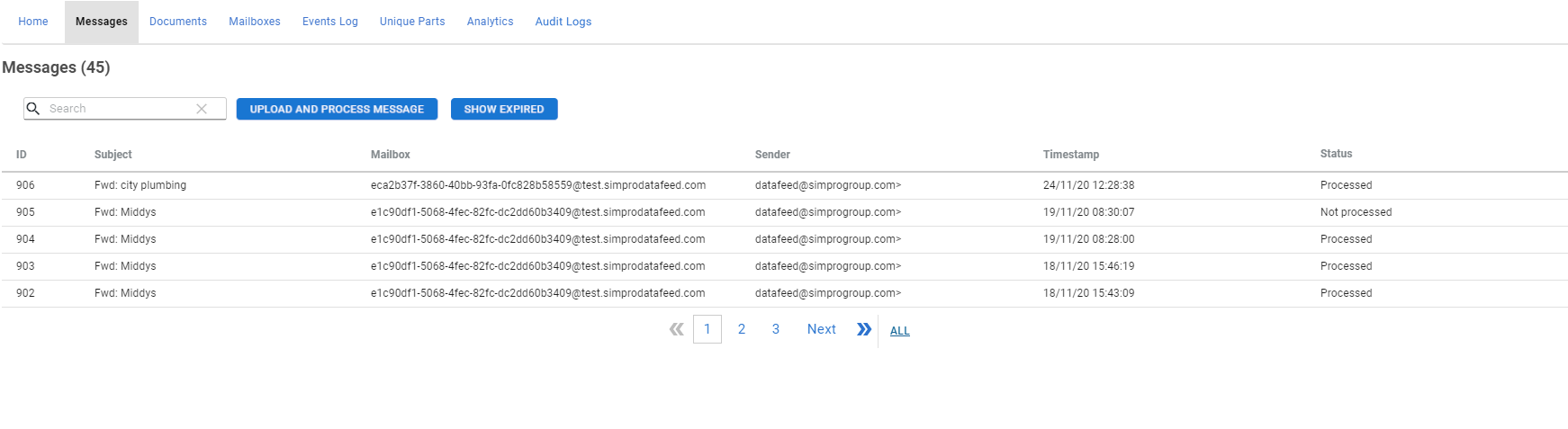
You can view each email's Subject, Mailbox, Sender, Timestamp, and Status:
| Not processed | An email or document has been received in Simpro Data Feed, but has not matched to a feed and has not been processed. |
| Processing |
An email or document has been received in Simpro Data Feed, and is going through the following stages:
These stages can all occur within minutes. |
| Processed | An email or document has been received in Simpro Data Feed and has finished processing through a feed. |
Click an email in the Messages table to learn more detail. If the email has not yet been processed, you can view its contents in the Message tab and select a feeds to execute. Learn more in Manually upload an email.
If the email has been processed in a feed, you can view the data the feed has extracted from it, as well as view the individual email's Event Log. If the email's feed has generated a workflow in Simpro Premium, you can click view to access that workflow in your Simpro Premium build.
While the Messages tab displays all emails received or uploaded into Simpro Data Feed, you can only access those received or uploaded within the last 60 days. Emails older than 60 days are removed and only display details such as their subject, mailbox, and status. Learn more in How long are emails and documents stored in Simpro Data Feed?.
Manually upload an email
You can manually upload email files in EML format into Simpro Data Feed to process in a feed.
To manually upload and process an email:
- Access Simpro Data Feed as normal, then click the Messages tab.
- Click Upload and Process Message.
- Review the Manual message upload information, then click Browse / Choose File to locate the email file in EML format or you can drag the file to upload.
- Under Choose a feed to process the document, select a feed to execute.
- Click Upload and Start Process.
Alternatively, depending on your external mail client, you can also drag an email directly into the Messages table. You can then:
- Click the email.
- View its contents in the Message tab.
- Next to Message not processed yet, select a feed to execute.
- Click Start Processing.
The feed then automatically executes, ignoring matching rules. View the events log to check its progress and complete any missing data.
View documents
Click the Documents tab to view all documents received by Simpro Data Feed as email attachments. You can also Manually upload a document and select a feed to execute, which ignores all matching rules and email extraction settings.
Click Show Expired to view the expired documents alongside the active documents.
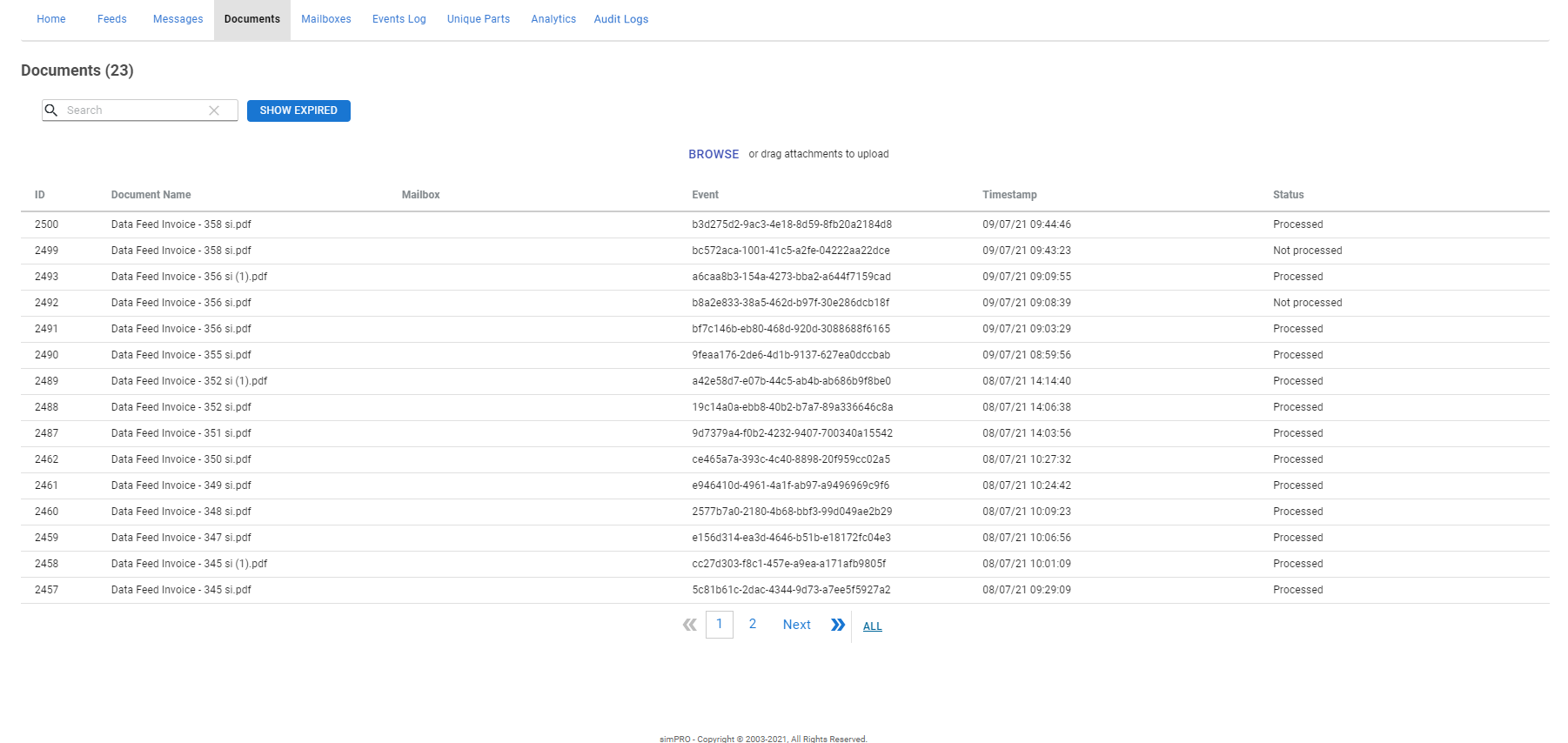
You can view each document's Document Name, Mailbox if received as an email attachment, Timestamp, and Status:
| Not processed | An email or document has been received in Simpro Data Feed, but has not matched to a feed and has not been processed. |
| Processing |
An email or document has been received in Simpro Data Feed, and is going through the following stages:
These stages can all occur within minutes. |
| Processed | An email or document has been received in Simpro Data Feed and has finished processing through a feed. |
Click a document to see more detail. If the document has not yet been processed, you can view its contents in the Document tab and select a feed to execute. Learn more in Manually upload a document.
If the document has been processed in a feed, you can view the extracted data and the individual document's Log. If the document's feed has generated a workflow in Simpro Premium, you can click view to access that workflow in your Simpro Premium build.
While the Documents tab displays all documents received or uploaded into Simpro Data Feed, you can only access those received or uploaded within the last 60 days. Documents older than 60 days are removed and only display details such as their name, timestamp, and status. Learn more in How long are emails and documents stored in Simpro Data Feed?.
Manually upload a document
To manually upload a document to Simpro Data Feed:
- Access Simpro Data Feed as normal, then click the Documents tab.
- Click Browse or you can drag the file to upload.
- Please ensure the document file type is compatible with the feed to be executed. For example, if the feed is configured to extract data from a PDF attachment, you need to upload a PDF file.
- Click Upload.
When the file has uploaded, you are returned to the Documents tab. You can then select a feed to execute immediately or at a later time.
To execute a feed for an uploaded document:
- Click the document in the Documents tab.
- If the Saved Document tab does not appear, click Documents in the breadcrumbs, allow some time for the document to fully upload, then click it again.
- Select the feed to be executed from the drop-down list, then click Start Processing.
- To delete the uploaded document and not process it through a feed, click Delete File.
The feed then automatically executes, ignoring matching rules or extraction settings requiring data from an email. View the events log to check its progress and complete any missing data.
You cannot manually upload CSV documents. Please use Utilities > Import in your Simpro Premium build instead.
Create mailboxes
Simpro Data Feed receives emails and attached documents by having emails forwarded from your external mail client to Simpro Data Feed mailboxes.
When Simpro Support sets up your feeds, they can configure multiple feed to one mailbox, or specific feeds to individual mailboxes. Learn more in Set up Simpro Data Feed.
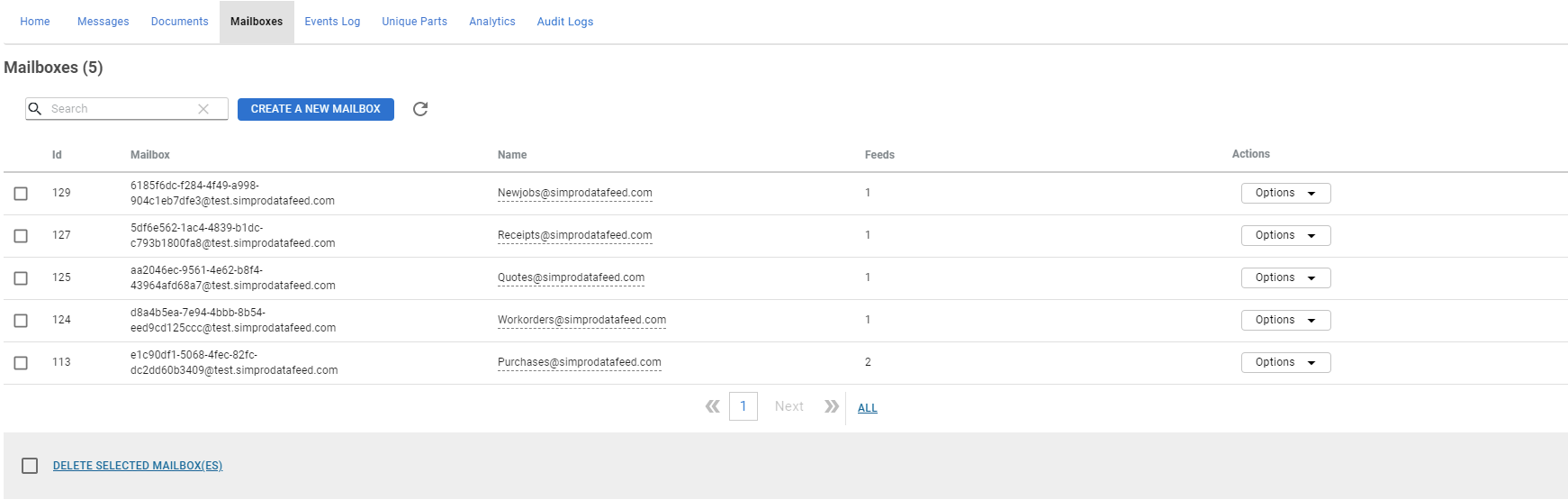
To create a mailbox in Simpro Data Feed:
- Click the Mailboxes tab.
- Click Create New Mailbox.
- The new mailbox appears in the bottom row of the Mailboxes table with the forwarding email address in the Mailbox column.
- Use the edit icon to edit Mailbox Names. You can edit any data before the @ of the created Mailbox email.
- To copy this email address to enter in your external mail client, click Options > Copy to clipboard on the required mailbox.
- Contact Simpro Premium Support to update or create a feed to monitor this mailbox.
To delete a mailbox, ensure it has no Feeds configured to it, then click Options > Delete. You can only delete mailboxes that don't have an associated feed.
If an email does not match a Simpro Data Feed mailbox, it will not be accepted or saved in Simpro Data Feed.
View the events log
Click the Events Log tab to view a log of all events that have occurred in Simpro Data Feed, including:
- When you have manually uploaded an email or document
- When an email or document has been received
- Feed progress and outcomes
- Other feed events, such as a customer or site being created as part of the data extraction.
Filter events by Feed, Set Range, Event Progress, and Outcome.
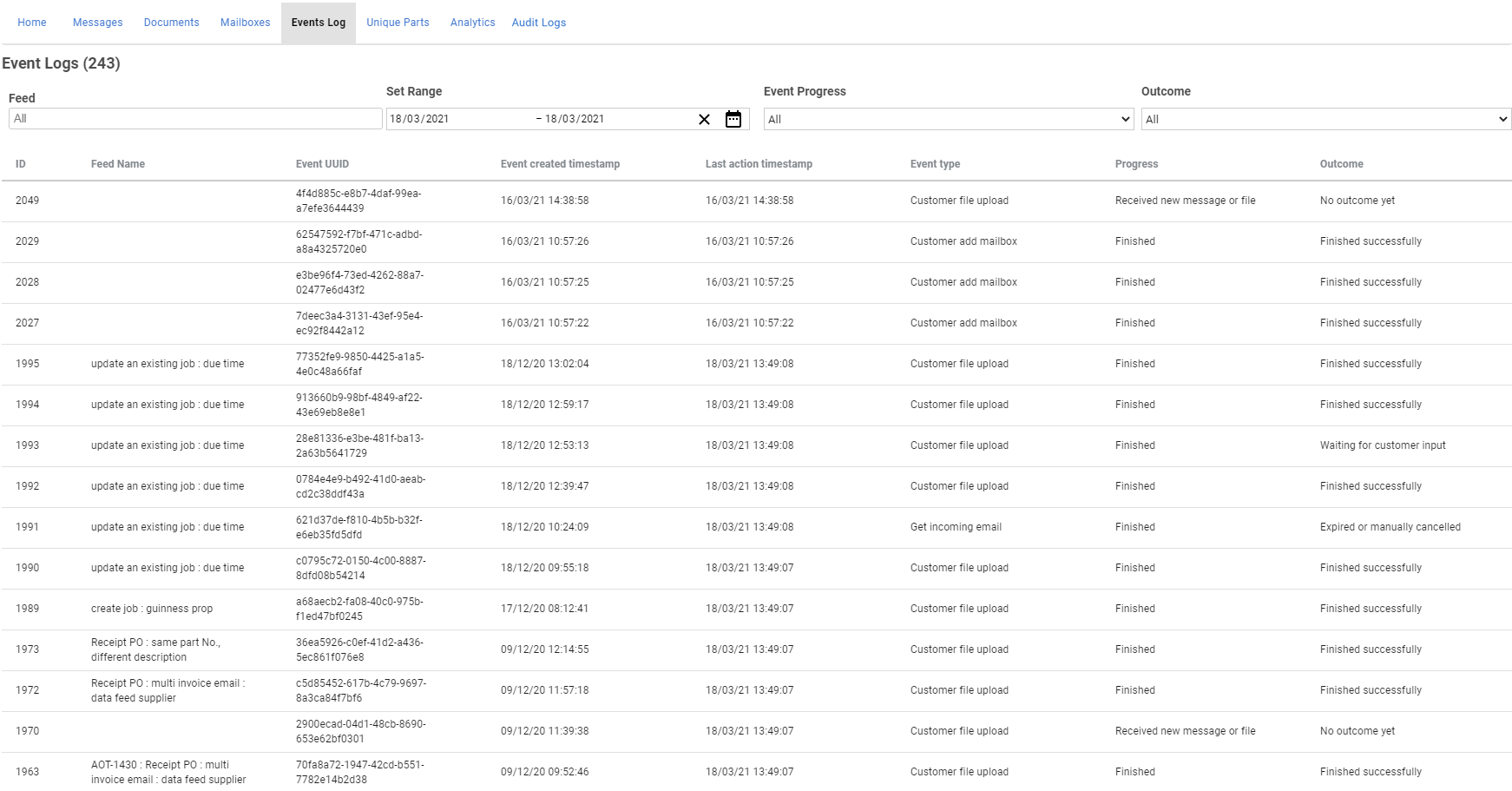
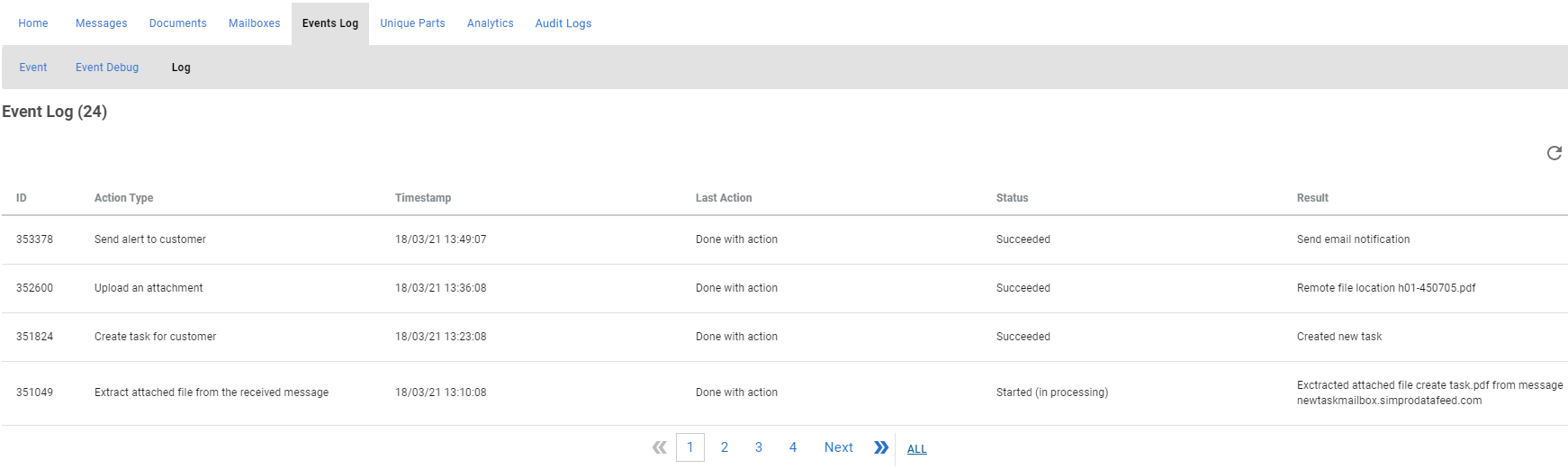
You can click an event to see more detail, such as the relevant email or document, the data the feed has extracted, and more. You can also view the individual Event Log, which contains debugging information including how and from where each field of data was extracted.
If the event's feed has generated a workflow in Simpro Premium, you can click view to access that workflow in your Simpro Premium build.
Create or delete unique part number
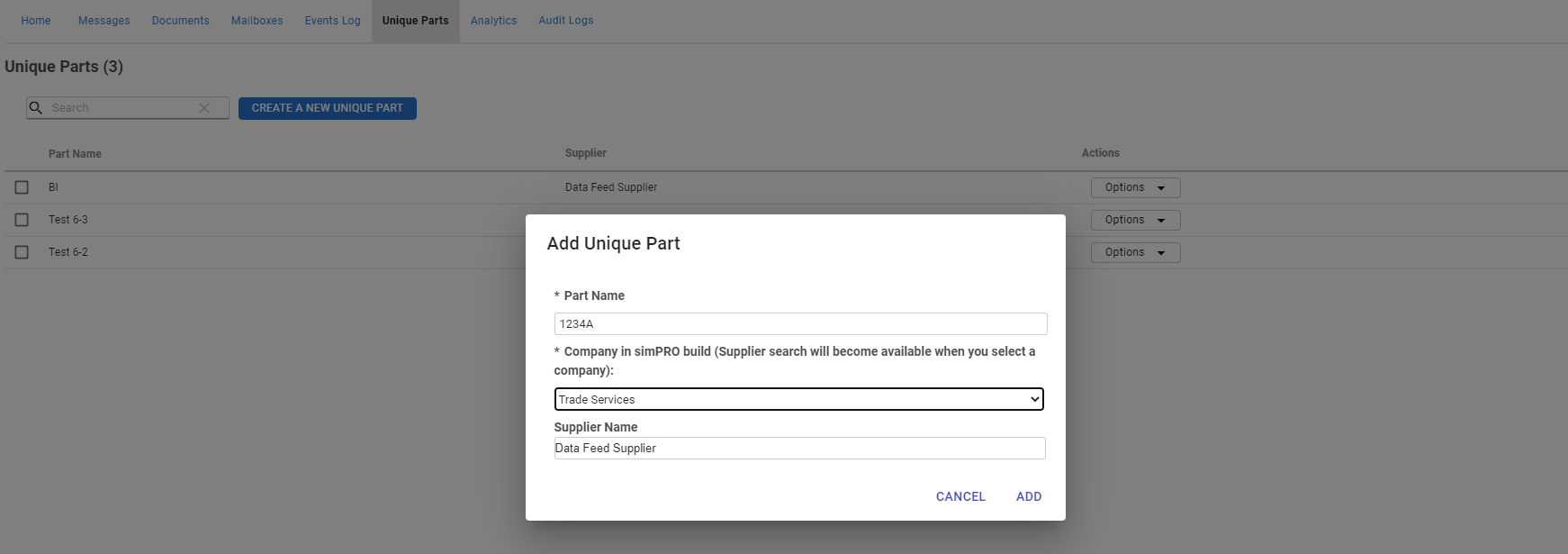
To create a unique part number:
- Go to Utilities > Data Feed.
- Click Unique Parts.
- Click Create a New Unique Part.
- Enter the Part Number that is used by a supplier to represent multiple unique items.
- Select the relevant company, if you use multi-company there will be multiple options.
- Enter the name of the relevant Supplier in the search field and select the relevant Supplier from the drop-down.
- Click Add.
- Now, when a supplier invoice is processed with multiple unique items that have the entered part number, the purchase order is receipted without having to access the receipt in the Events Requiring Input table. Update the Invoice Line Items and Save and Process the file manually.
If a unique part number is no longer relevant click Options > Delete.
View analytics
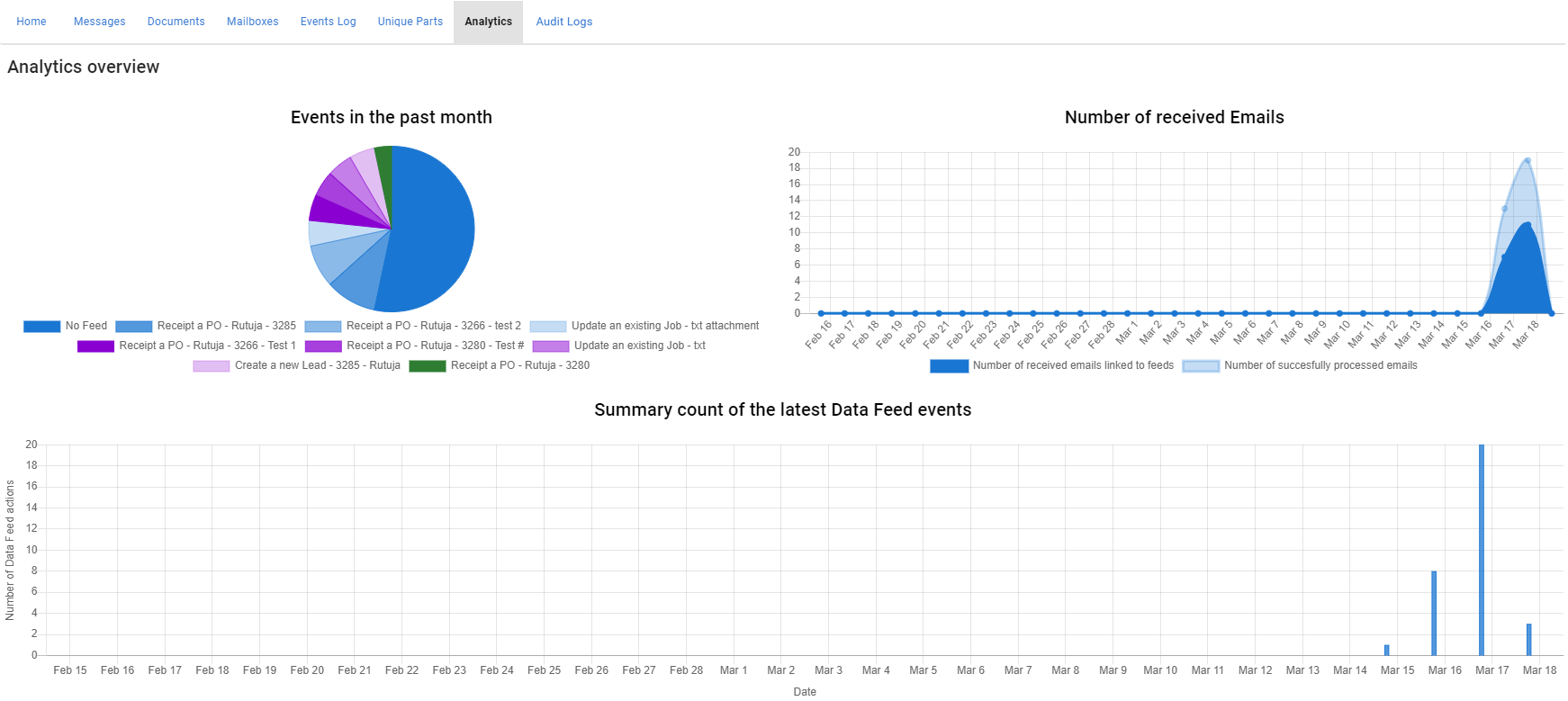
Click the Analytics tab to view the following activity graphs for your Simpro Data Feed system.
| Events in the past month | Displays the different feeds processed for all emails and documents received in Simpro Data Feed in the last 30 days. |
| Number of Received Emails |
Displays the number of successfully processed emails and the number of emails received that are linked to feeds. The X axis represents the number of days and the Y axis represents the number of events. |
| Summary count of the latest Data Feed events |
Displays the count of the latest Data Feed events. The X axis represents the dates and the Y axis represents the number of Data Feed actions. |
View logs
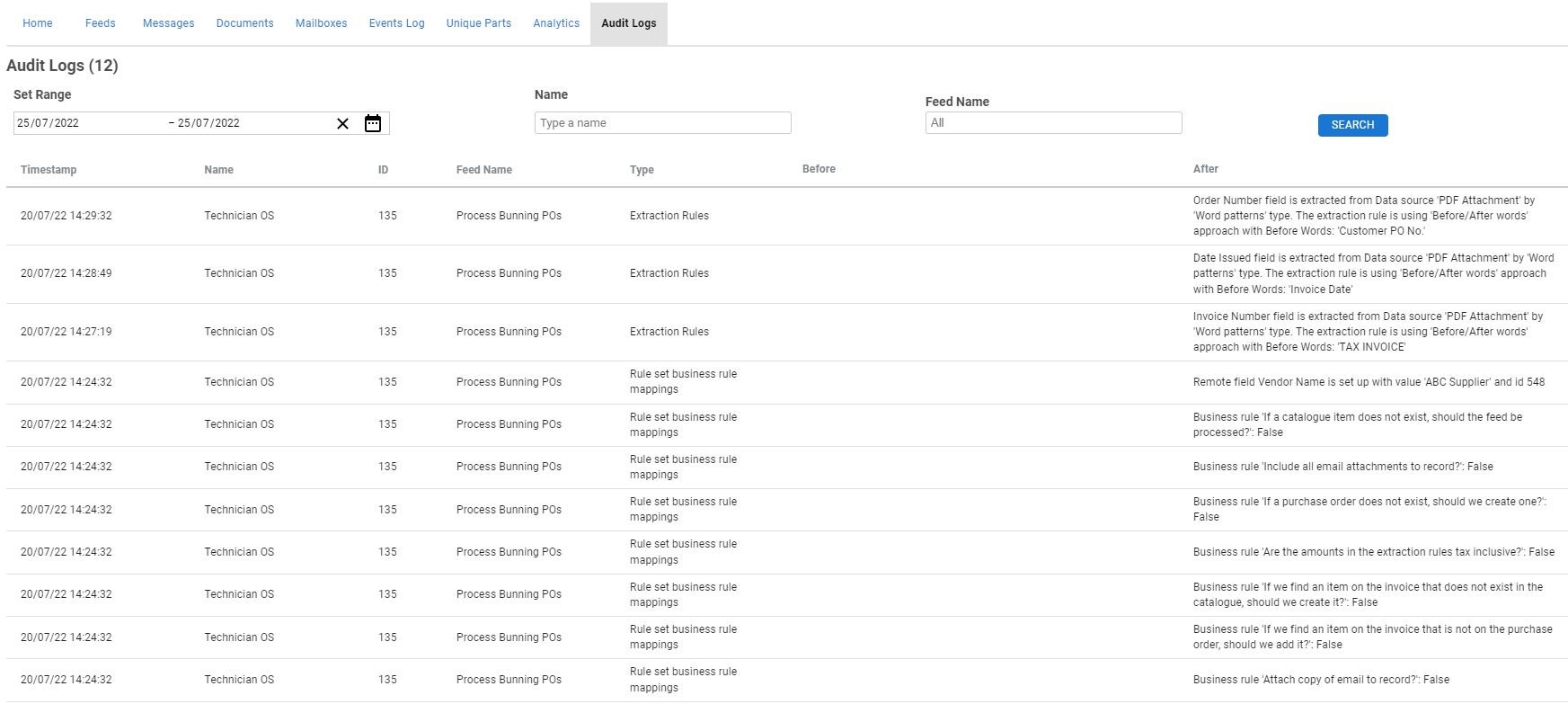
Click the Audit Logs tab to view details about the updates to feeds. Use the filters to sort the list based on the Timestamp, Name and Feed Name. The results also display theType and Before and After details of the changes made to the corresponding feeds.
View data created by Simpro Data Feed in Simpro Premium
When a feed has been set up to send notifications when it has completed executing, you receive an email from Simpro Data Feed detailing what has been created in Simpro Premium, for example, a job number.
You can also determine what has been created by Simpro Data Feed by looking through your Simpro Premium build:
| Leads | Any document that the lead was created from is attached to the lead in the Attachments tab. |
| Quotes and jobs |
The first quote / job creation event in the activity timeline in Details > Summary displays Simpro Support [date] - System. Learn more in How to Use the Activity Timeline. Any document the quote or job was created from is also attached in the Attachments tab. Learn more in How to Use Attachments. |
| Tasks | Any document that the task was created from is attached to the task in the Attachments tab. |
| Supplier invoices | In Receipt Order > Private Notes, a message appears detailing the supplier invoice number the data was extracted from. |
| Purchase order |
In Order > Private Notes, the following message appears: 'This receipt was created automatically by Simpro Data Feed.' You can also modify your table view for purchase orders so you can see if Simpro Data Feed created certain purchase orders at a glance. To do this:
The Created By column for all purchase orders created by Simpro Data Feed then displays Simpro Support. |
| Catalogue item |
In Details > Notes, the following message appears: 'Item created automatically by document processing platform. Item notes extracted from the document were:' Any data extracted for the Notes field also appears appear. |
| Customer card file | In Profile > Settings > Notes, a timestamped message appears. |
| Site card file | In Notes > Private Notes, a timestamped message appears. |
 > Purchase Orders.How long are emails and documents stored in Simpro Data Feed?
After an email or document has been received by Simpro Data Feed, it is stored for 60 days. The contents of the email or document are then erased to ensure your system is only storing relevant data, however a record remains with details such as the email subject, mailbox, document name, timestamp, and status.
Documents attached to emails that have been processed and posted over to Simpro Premium remain attached to the relevant workflow in Simpro Premium.