Last Updated: December 12 2025
Overview
In Simpro Premium, an invoice is a list of goods sent or services provided and the sum due for these from your customer. After you have approved, emailed, and received payment for an invoice, you can apply the payment to the invoice in Simpro Premium.
You can also raise customer credit notes against invoices in Simpro Premium to record credited or voided invoices. Learn more in How to Raise a Customer Credit Note.
Click to view the Invoice Types diagram below to learn which invoice is applicable for your different projects.
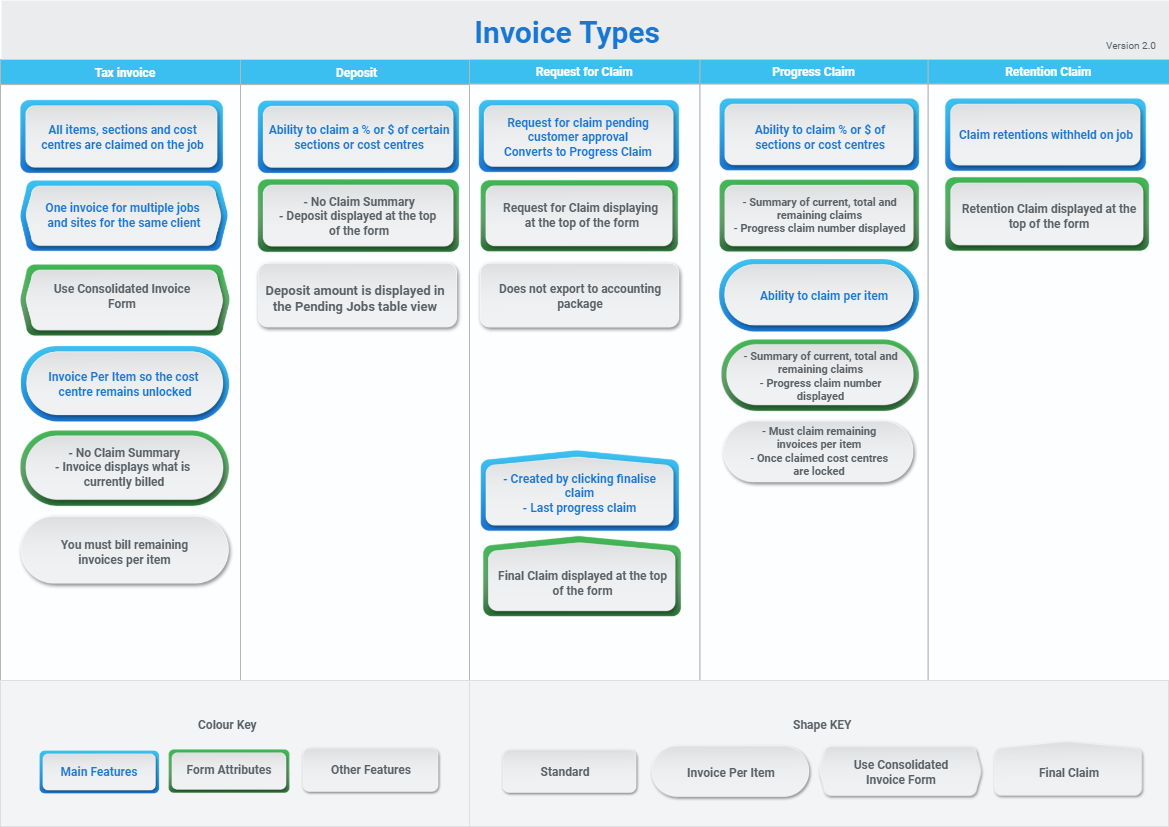
To set up how your invoice forms appear when you email them to customers, see How to Set Up Invoice Forms.
You can also see How to Set Up Request For Claim Forms to learn how to set up how your requests for claim appear.
US only: If you use Simpro Premium in the United States, the terms 'progress invoice', 'deposit invoice' and 'final invoice' are used instead of 'progress claim', 'deposit claim', and 'final claim'.
US only: If you use Simpro Premium in the United States, the terms 'progress invoice', 'deposit invoice' and 'final invoice' are used instead of 'progress claim', 'deposit claim', and 'final claim'.
Please ensure your job values are accurate and up to date prior to invoicing. Once you have created an invoice, you can only adjust values by beginning the audit process and voiding the invoice.
 Required setup
In order to view content or perform actions referred to in this article you need to have the appropriate permissions enabled in your security group. Go to System > Setup > Security Groups and access your security group to update your permissions. The relevant security group tab and specific permissions for this article can be found here:
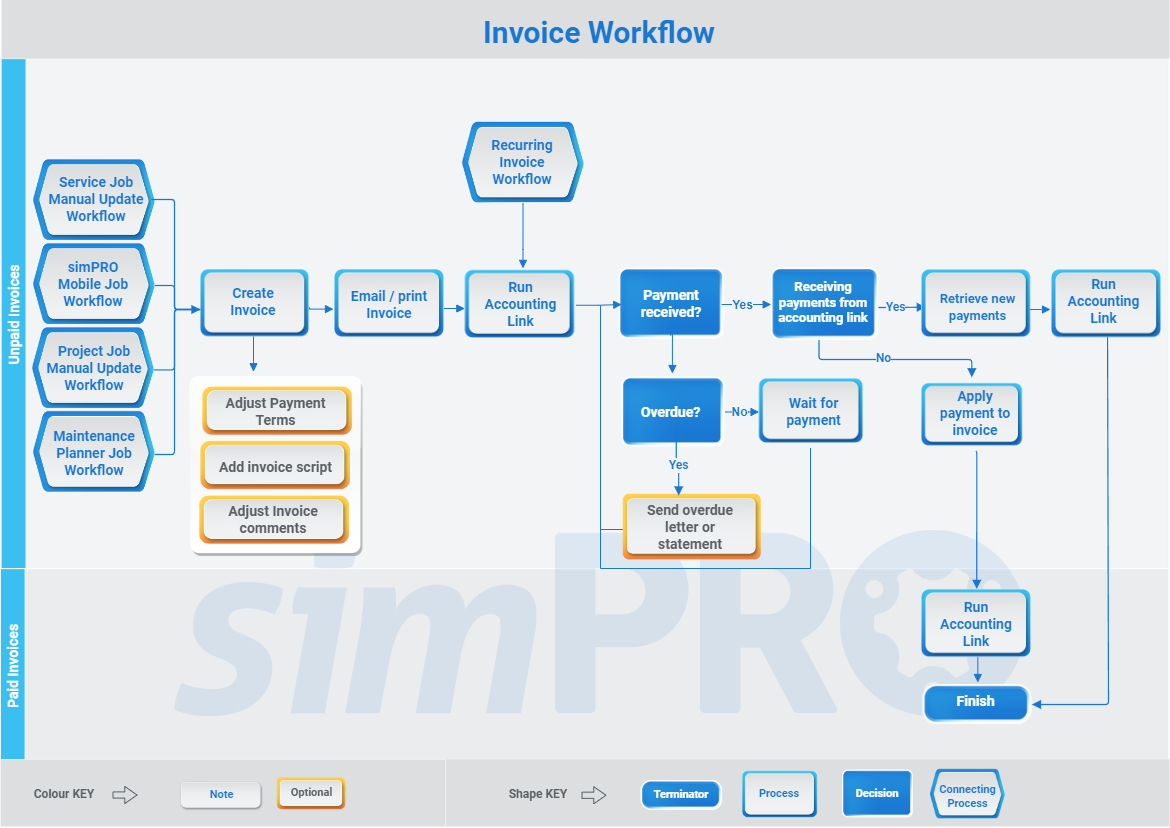
Simplified invoice workflow
Below is a simplified workflow for creating a customer invoice, posting it to your accounting package, and applying payment in Simpro Premium:
Manage invoices
You can invoice individual or multiple jobs in the following ways:
|
Update and invoice the job |
Update a job that is ready to invoice. Click Save and Finish. And, Invoice Job. |
|
Invoice an individual job |
Go to Jobs If you have already raised a progress claim against the job, click Options > Create Progress Claim. |
|
Create a consolidated invoice |
Create one consolidated invoice for jobs that share the same customer and exchange rate:
The selected jobs are invoiced under the same invoice in Invoices Payments made on consolidated invoices cannot be calculated as an amount paid per job, so the Amount Paid table view column is not calculated for jobs on a consolidated invoice. Learn more in How to Organise Simpro Premium Data. When you email a consolidated invoice to the customer, select the Consolidated Invoice form in the Forms tab. This form is designed to show multiple jobs on one invoice and can be customised in your invoice forms setup. Learn more in Set up consolidated invoice forms. |
 > Pending / Progress / Complete, then click Options > Create Invoice on the job you wish to invoice.
 > Unpaid. The Job No. column displays all jobs on the invoice.Select the invoice type
Once you have created an invoice from a job, you can then proceed to create and email one of the following types of invoices:
- How to Create a Tax Invoice
- How to Create a Deposit Invoice
- How to Create a Request for Claim
- How to Create a Progress Claim
To learn how to claim the final claim rebate if you had retention withheld on a job, see How to Create a Retention Claim.
Approve an invoice
If you have selected Restrict Unapproved Invoices in System Setup, invoices must be in the Approved stage before they can be emailed to the customer, paid off, voided, or credited. If you have not selected Restrict Unapproved Invoices, invoices can be emailed to the customer before they are approved, but you must approve the invoice before applying payments.
To automatically approve invoices upon creation, go to System > Setup > Defaults > System > Invoices > Invoice Stage and select Approved. Alternatively, select Pending to require them to be manually approved by an employee with the correct security group permissions.
To approve an invoice still in the Pending stage:
- Access the applicable invoice.
- Click Unlock.
- Under Invoice Stage, select Approved.
- Click Finish.
Email an invoice
Learn more about using form builder templates in How to Use Form Builder Templates.
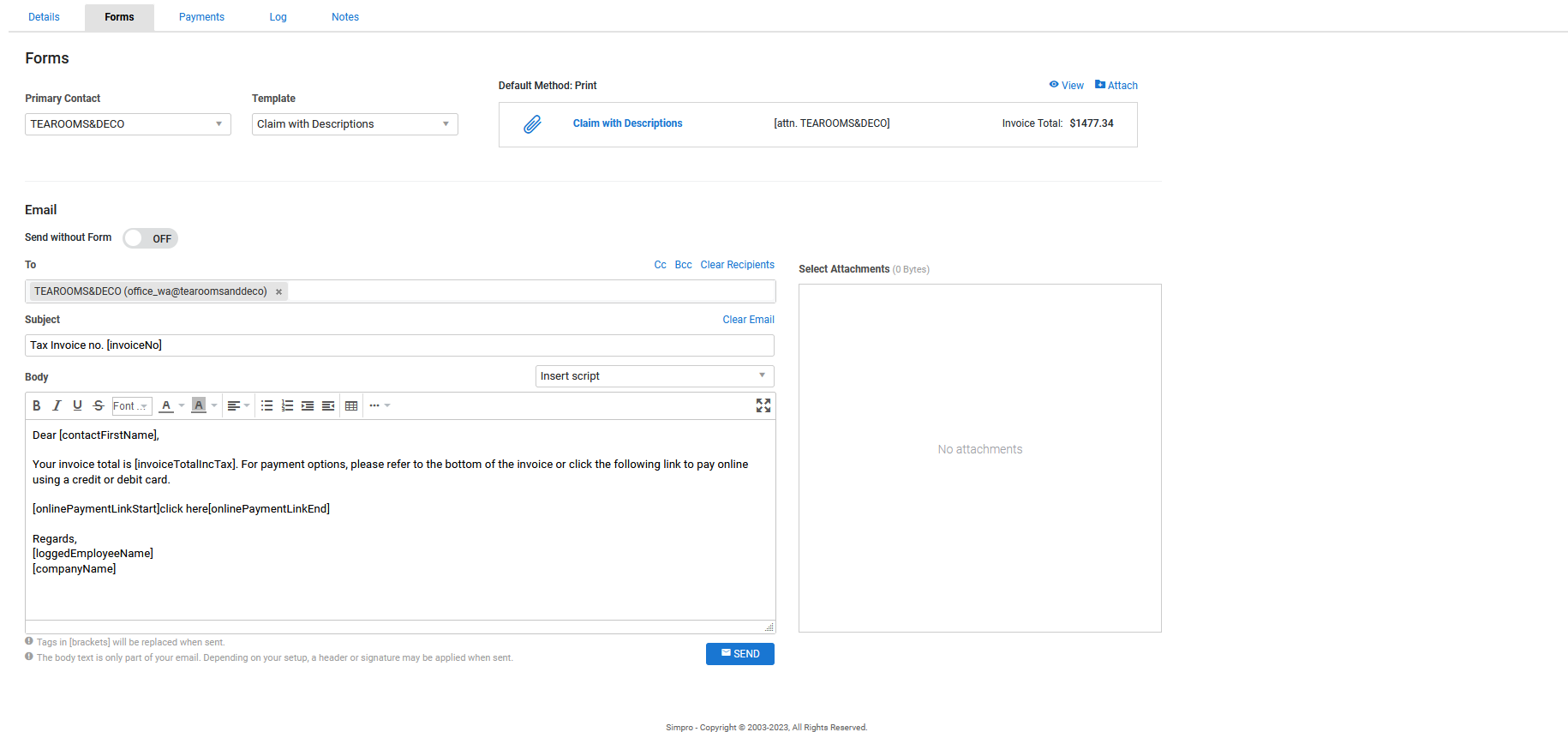
To email an invoice form:
- Click the Forms tab in the invoice.
- Select the form you wish to send from the Templates list.
- See Assign form templates to appear when emailing a customer invoice / Assign form templates to appear when emailing a request for claim to learn how to update the forms that appear here.
- Click View to preview and / or print the form.
- Select a Primary Contact to address the form to and click to add additional Contacts if required.
- This is automatically populated by the primary contact for invoicing defined in the customer card file.
- Alternatively, you can manually enter email addresses and separate them with a comma. To remove recipients, click Clear Recipients.
- Any secondary contacts selected when setting up the lead / quote / job are pre-populated in the Cc field. You can also add more recipients in the Bcc field if you want to hide their email addresses from other recipients.
- Adjust the default Subject and Body template if required.
- See Set up the email template for customer invoices / Set up the email template for requests for claim to learn how to update this template.
- Alternatively, click Clear Email to enter a new Subject and Body, or select a script from the Insert Script drop-down. Learn more in How to Use Scripts.
- Click Send > OK > OK.
A log entry is then created in the Log tab, where you can view the email text and any form attachments.
If you need to send multiple invoices, consolidated as a customer statement, use the Aged Receivables Report. Select the customers you want to email a statement to and click Email in the footer options. Alternatively, to send multiple individual invoices use the Sales Invoices Report. Generate the report as required, select the check boxes for the invoices to email and under Print Options, select the invoice form and click Email at the bottom of the page.
It recommended that you do not generate DOCX when you click View as it allows you to alter the invoice outside of Simpro Premium. This can cause errors within your accounting system and impact reporting.
View the invoice log
Click the Log tab to view a history of actions in that invoice, along with the logged-in employee who performed them and the date and time.
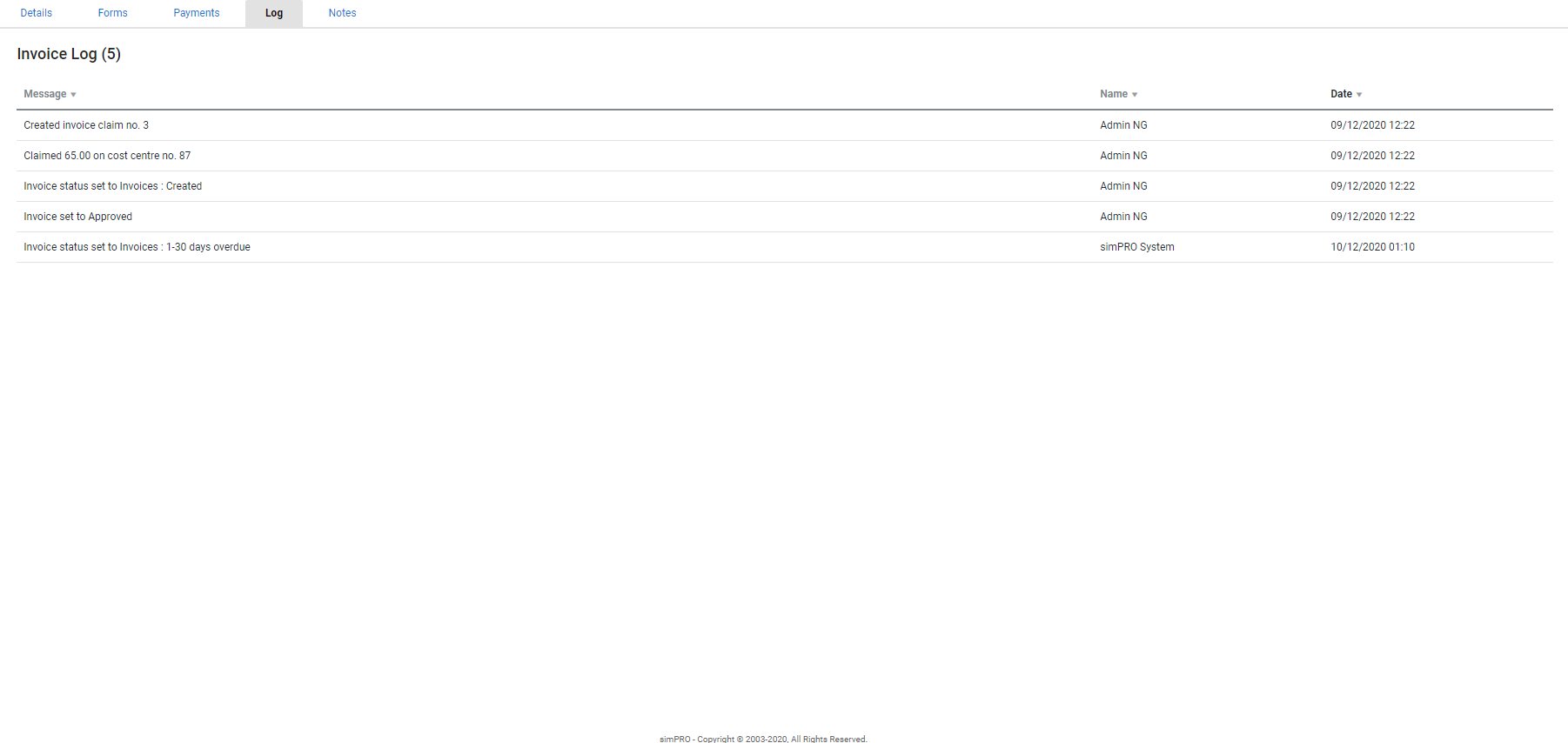
Actions logged in the Message column of the log can include:
- Creation and modifications
- Status updates
- Printing and emailing forms
- Payment.
Advanced
Invoice rounding
Invoices in Simpro Premium has a value of 2 decimal places. Numbers between zero and four round down, and numbers between five and nine round up.
The invoiced value on a job is the sum of each invoice, which means that the invoiced value on the job and the actual total of all invoices may not be the same. For example, a job may have a gross percentage profit calculated at 23.50933%. In the job summary, this value would display as 23.51%.
Each individual item in a job or invoice is rounded after markup has been applied. They are then added together, meaning the total value does not need to be rounded.
For purchase orders, only the total is rounded after all individual items have been added together.
Your tax may or may not be included in the rounding, depending on your Financial Defaults. Learn more in How to Set Up Financial Defaults.
Invoice values are rounded per Income Account. For example, the sum of all parts and labour with the same income account is rounded, and then added to the rounded sum of all other income accounts within that cost centre, before adding all cost centre values together to equal the Job Total.
Walk Me Through
Need additional help?
Try Walk Me Through, our step-by-step guidance tool, to create invoices.
In Simpro Premium, go to Help  > Walk Me Through and search Invoice a Job.
Learn more in How to Use Walk Me Through in Simpro Premium.
Get a demo
Interested in Simpro and want to learn how its features can benefit your business? Visit the Simpro website to discover more and request a demo today.